How To Turn Off Creator Account On Instagram
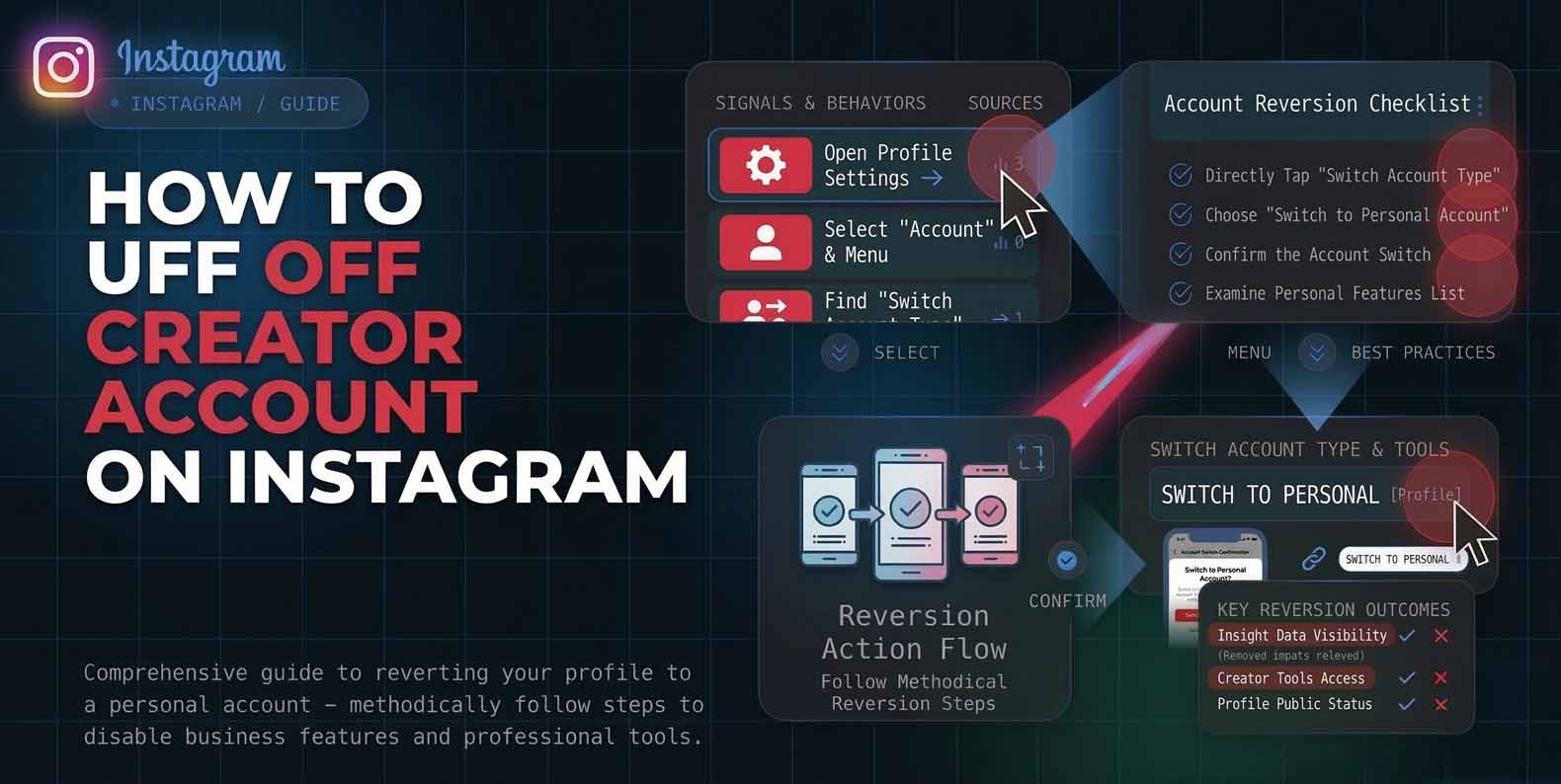
Switching off a Creator profile is usually about simplifying your account, regaining privacy controls, or removing the Professional Dashboard. If you are searching how to turn off creator account on instagram, the core action is switching your profile type from Creator to Personal inside Instagram settings. Instagram labels Creator as a type of professional account, designed for creators and public facing profiles, with added insights and tools compared with Personal profiles.
Creator Vs Personal Accounts What Changes When You Switch
A Creator account is part of Instagram’s Professional account types, alongside Business accounts. Professional accounts are built to help measure performance and manage messages, and they offer analytics and audience insights. Personal profiles are different in a key way: they are the only profile type that can go private, while business and creator profiles are public only.
That single difference is the most common reason people decide how to turn off a creator account on instagram and go back to Personal. You will still keep your posts, followers, and messages, but you should expect changes in what menus you see and which professional tools remain available.
How To Turn Off Creator Account In The Instagram App
If your goal is how to turn my creator account off on instagram, follow the in app switch flow. The exact labels can vary slightly by update, but the path stays consistent.
- Go to your Profile in the Instagram app
- Tap the top right menu icon
- Scroll to the For professionals section and tap Creator tools and controls
- Tap Switch account type
- Choose Personal and confirm the switch
If you do not see Creator tools and controls, look for Account type and tools, then Switch account type. This menu name changes based on your current profile type. After the change, your Professional Dashboard should disappear, and settings like the private account toggle should become available.
How To Turn Off Creator Account On Instagram Pc
Many users want how to turn off creator account on instagram pc because they prefer doing account changes from a desktop browser. The switch is possible from instagram.com, though the menu names differ compared with mobile.
- Open instagram.com and log in
- Select More, then Settings
- Look for the Professional account section in the settings sidebar
- Choose the option to switch account type, then select the profile type you want
If you do not see the same labels as mobile, that is normal. Desktop settings can group professional features under a dedicated sidebar area, while mobile places them inside For professionals.
What You Keep And What You Lose After Switching
Switching from Creator to Personal keeps the content people care about most: your posts, your followers, your following list, and your messages. The main differences show up in tools.
What you may lose or see reduced
Professional analytics and creator focused performance tools, since those are part of the professional account feature set. Professional workflow options in third party tools. For example, Later notes that due to Instagram API limitations, only business and creator profiles are supported for many advanced features, while personal profiles have the least API capabilities.
What you gain back
The ability to set your profile to private, since personal profiles are the only type that can go private A simpler interface without the professional dashboard style layout. If you rely on scheduling tools or analytics platforms, verify whether they require a professional profile before you switch.
Troubleshooting When The Switch Option Is Missing
If you cannot find Switch account type, try these fixes before assuming the feature is gone.
Update the app and restart
Instagram frequently moves settings labels and hides options behind updated menus. A clean restart after updating often makes the For professionals section display correctly.
Check which account you are editing
If you manage multiple profiles, confirm you are on the correct one. The For professionals section will appear differently depending on whether the current profile is Personal, Business, or Creator.
Use the alternate menu name
Some accounts show Creator tools and controls, others show Account type and tools, but both lead to Switch account type.
Try desktop if mobile is glitchy
If the app is stuck, log into instagram.com and use the desktop path described earlier.
Best Practices Before And After You Switch
Before you switch, screenshot any professional insights you need for reporting, since those dashboards may no longer appear in the same way afterward. Also check any tools you use for publishing or analytics because many services rely on professional account access through Meta’s API.
After you switch, review these items
Turn on private mode if privacy is your goal, since Personal profiles are the only type that can use it .
Recheck your contact buttons and profile category settings
Test your DMs and comment filters if you previously used creator inbox organization features, since Professional accounts include additional message management and insights tools. If you want a clean transition, do the switch during a low activity period, then confirm your profile looks right on a second device.